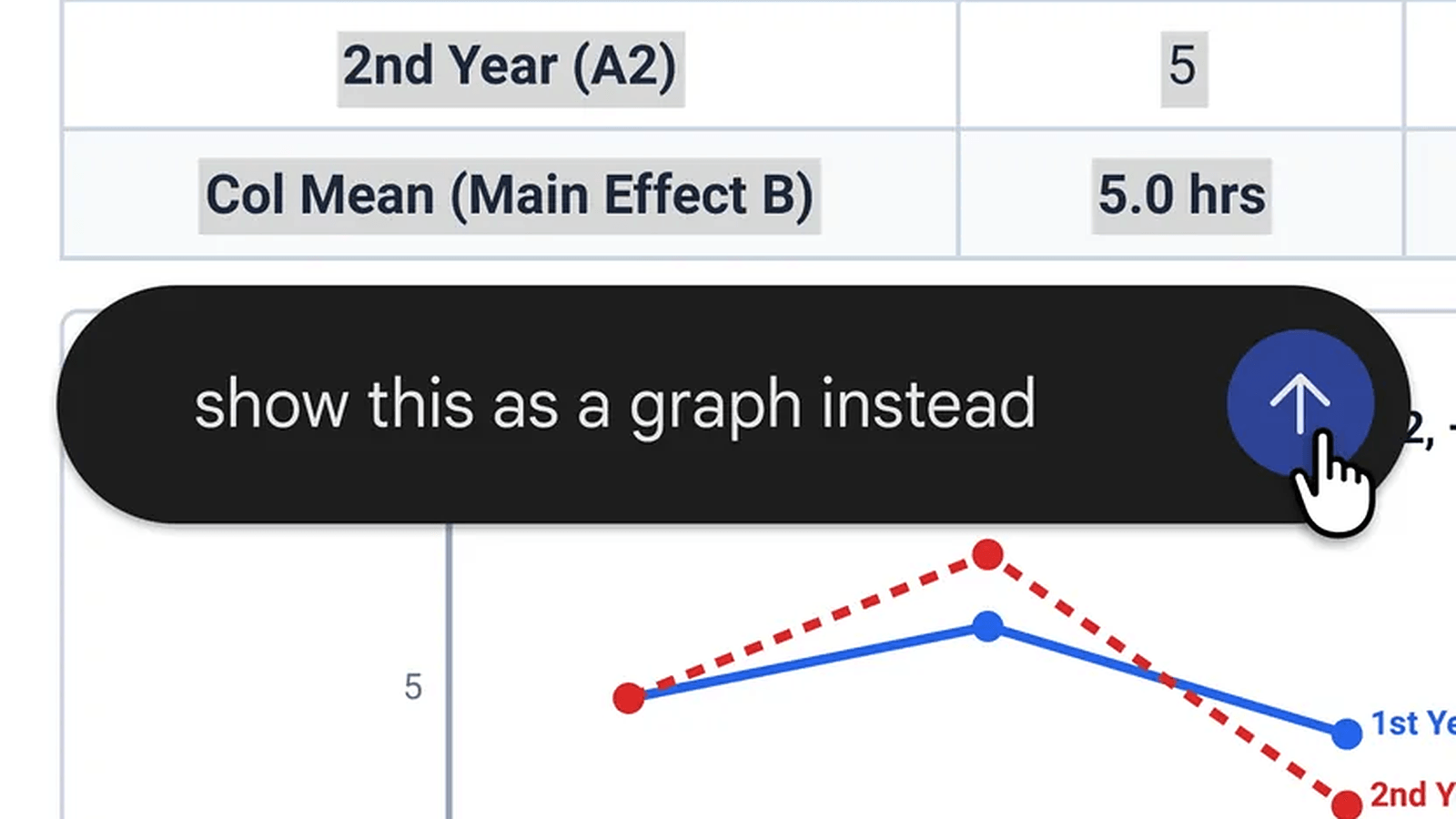
Google announced Gemini file editing and in-chat previews on 29 October. Only one of our three test files stayed inside Gemini. In InfoSeely’s test on a free Google account, a PDF opened in Gemini’s own preview panel, and a targeted edit changed only the line we selected. A Google Doc and a Google Sheet opened in Google Docs and Google Sheets instead, and Gemini made its edits from a side panel in each app.
According to Google’s file editing announcement, Gemini, Google’s AI chat app, now previews the files it generates and lets you change them in the conversation, either by typing or by asking. Google describes the feature as available now, with no preview or beta label, for personal Google accounts, Workspace Individual subscribers, and all Google Workspace customers.
Sufyan Amjad ran each test once on 30 October, using Chrome on Windows at gemini.google.com with “Gemini Auto” selected in the Gemini app. Slide decks, the mobile app, and Word or Excel exports were not part of the test.
How to create a file in Gemini
Creating a file takes one prompt. Name the format you want, then check whether Gemini offers an in-chat preview or opens a separate app.
- Go to gemini.google.com and sign in.
- Ask for a specific file type. We asked for a one-page agenda with a short intro and five numbered items, first as a Google Doc and then as a PDF.
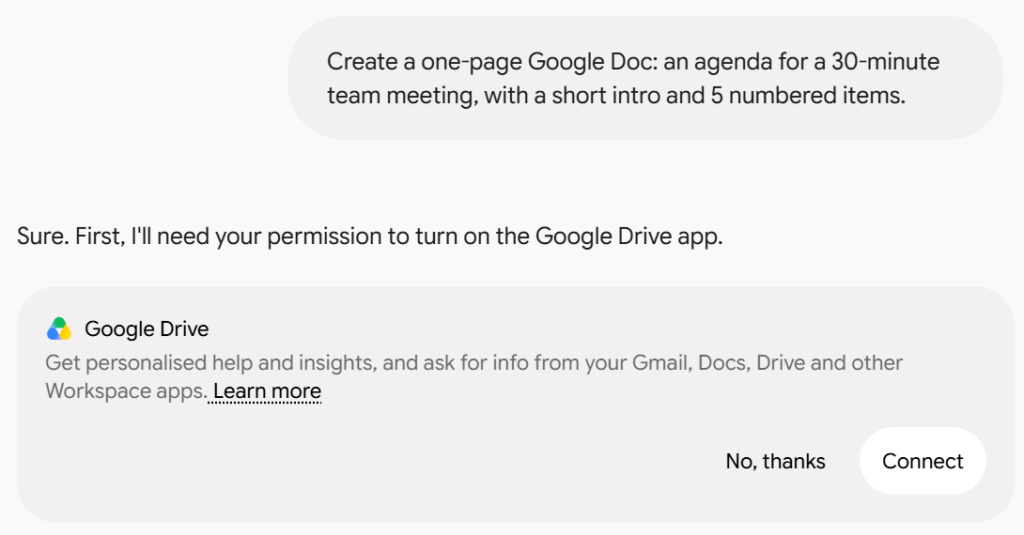
- Approve the Google Drive connection if Gemini asks for it. Before creating our Doc, Gemini asked permission to connect the Google Drive app, and the prompt said the connection lets it “ask for info from your Gmail, Docs, Drive and other Workspace apps.” We connected it.
- Wait for the file. The Doc took 38 seconds and the PDF took about a minute.
- Click the file to open it.
Google lists generation formats separately from formats supported for previews and editing. The April file generation launch covered Docs, Sheets, Slides, PDF, DOCX, XLSX, CSV, LaTeX, TXT, RTF, and Markdown. October’s announcements list PDFs, Google Docs, Sheets, slide decks, LaTeX, Markdown, TXT, and code for previews and editing. DOCX and XLSX, the Word and Excel formats, appear in the generation list but not in October’s editing lists. PDF previews and editing work on the web and mobile. The other listed editing formats are web-only.
How to edit just one part of a PDF in the chat
The PDF opened in a preview panel inside the chat, with buttons for Export, undo, redo, share and full screen. It also matched our request exactly: a short intro, five numbered items and the line “Page 1 of 1.”
- Open the file in the chat’s preview panel.
- Highlight the text you want to change. An “Ask Gemini” box appears.
- Type your request. We highlighted the description of item 1 and wrote “Make this shorter.”
- Read the rest of the page to confirm nothing else moved.
Item 1 changed from “Brief check-in, review meeting objectives, and confirm today’s agenda scope.” to “Quick check-in and agenda review.” Items 2 to 5 stayed exactly as they were.
For an exact fact such as a date or a name, typing the correction yourself is safer than asking Gemini to make it. Google says you can expand the preview to full screen and type edits directly. Save prompted requests for wording changes, like the one above.
Targeted edits are not new to Gemini. Canvas, Gemini’s editing workspace, offered selected revisions of documents and code in March 2025. The new part is applying that kind of change to files Gemini generates in an ordinary chat.
What happens with Google Docs and Sheets files
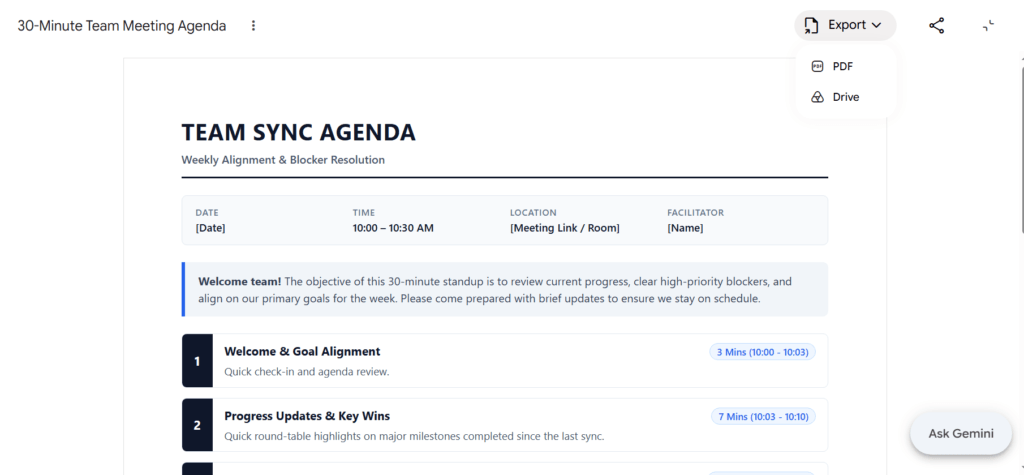
Google’s announcement lists Google Docs and Sheets among the formats that can be previewed and edited in the chat on the web. On our free account, both opened in their own apps instead. Clicking the Doc took us to Google Docs at docs.google.com.
The Doc also went beyond the request. We had asked for a short intro and five numbered items. Gemini built tables with five agenda rows and added “Meeting Overview” and “Action Items” sections filled with Person, Date, and Place placeholders.
Editing worked well inside Docs. Using the Gemini box there, we asked it to shorten one table cell. Only that cell changed, and Gemini showed a proposed edit with Accept and Reject buttons. Nothing was final until we chose.
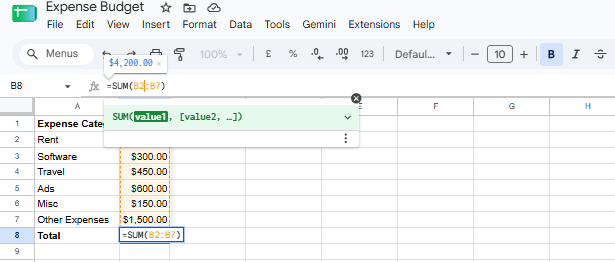
For the Sheet, we asked for a budget with Rent at 1,200, Software at 300, Travel at 450, Ads at 600, and Misc at 150, plus a SUM total. It opened in Google Sheets with a total of $2,700, which is correct. Gemini added dollar signs on its own, although we never gave a currency.
We then asked the Gemini panel in Sheets to add $1,500 for other expenses. It added an “Other Expenses” row, and the total became $4,200. The total cell held =SUM(B2:B7), which adds cells B2 through B7, including the new expense. That means the total was a real formula rather than a typed number. Gemini also offered an Undo button for the change.
Both apps showed a banner saying we had limited access to Gemini in Docs or in Sheets, “for a limited time only.” Neither banner said how long that access would last.
What to check before you export or share
Our PDF Export menu offered two options: PDF and Drive. Google describes more routes on its page about supported exports and account access. Slide decks open in Google Slides or download as a PowerPoint file (.pptx) or PDF. Trackers and tables open in Google Sheets, and documents and PDFs can be uploaded to Drive.
We did not test downloaded files. Download and reopen yours, then check its layout, formulas, and editable slide elements.
Gemini’s file generation help page adds that most formats can be downloaded directly or exported to Drive, though it leaves Slides and PPTX out of that description. Google doesn’t promise that formulas, layout, or editable slide elements survive export.
Before anything leaves your hands, check these points:
- Placeholders: Search the file for words like Person, Date, and Place. Our Doc had them in sections we never asked for.
- Extra sections: Compare the file with your original request and delete anything you didn’t ask for.
- Currency and number formats: Gemini added dollar signs to our budget without being told a currency. Set the currency yourself.
- Formulas: Click each total and confirm that the formula’s range covers every row, including rows added later.
- Proposed edits in Docs: Read the suggestion before you press Accept.
Fix access and limit problems
- Gemini asks for Drive access: Creating our Doc required the Google Drive connection. Review the permissions shown before approving a connection. On a work account, check with IT first, as you would for any Gemini pilot.
- A file won’t edit on your phone: Google says the mobile app supports PDF previews and editing only. Use a browser for Docs, Sheets, slide decks, LaTeX, Markdown, TXT, and code.
- The feature is missing on a work account: Google says there is no admin control for this feature. IT teams still decide whether the Gemini app is turned on for the organization, so ask them about that first.
- You run out of usage: Personal accounts without a paid plan have Gemini usage limits that depend on workload. They refresh every five hours until you reach a weekly limit. Check your remaining allowance at gemini.google.com under Settings, Usage Limits. Google hasn’t said how much of that allowance one file uses.
Sufyan’s view: For quick edits inside the chat, start with a PDF. For Docs and Sheets, our files open in the apps under limited-time Gemini access, so check your account and review each change before relying on that workflow. Whatever the format, check placeholders and formulas yourself before sharing.
